Files and Documents
This guide explores Raikoo's capabilities for handling various file formats and document transformations. You'll learn how to convert between formats, generate documents, and work with different file types in your workflows.
Document Formats in Raikoo
Raikoo supports a wide range of document formats, allowing you to work with the file types most relevant to your needs:
- Markdown (.md) - Lightweight markup language ideal for content creation
- Word (.docx) - Microsoft Word documents for formal business documentation
- PDF (.pdf) - Portable Document Format for platform-independent viewing
- HTML - Web-based documents for browser viewing
- Plain Text (.txt) - Simple text files without formatting
- Spreadsheets (.xlsx, .csv) - Tabular data in various formats
Most AI operations in Raikoo work primarily with Markdown or plain text, but the system provides operations to convert between formats as needed.
Format Conversion Operations
Raikoo includes several system operations for converting between document formats:
| Source Format | Target Format | Operation |
|---|---|---|
| Markdown | Create PDF Operation | |
| Markdown | Word (.docx) | Execute JavaScript with template functions |
| Markdown | PDF to Markdown | |
| Word (.docx) | Markdown | Word to Markdown |
| Word (.docx) | HTML | Word to HTML |
| HTML | Text | HTML to Text |
| Spreadsheet (.xlsx) | CSV | Sheet to CSV |
| Spreadsheet (.xlsx) | HTML | Sheet to HTML |
| Spreadsheet (.xlsx) | JSON | Sheet to JSON |
| Spreadsheet (.xlsx) | Markdown | Sheet to Markdown |
These operations enable workflows that can seamlessly move between different document formats as part of processing pipelines.
Generating Word Documents from Markdown
Raikoo provides powerful functionality for generating Microsoft Word (.docx) documents from Markdown content. This is particularly valuable when you need formal business documents with consistent formatting.
Available Functions
Raikoo offers two JavaScript functions for Word document generation:
raikoo.markdownToDocxAsync()- Simple conversion with no templatingraikoo.renderDocxTemplateAsync()- Uses a DOCX template file with dynamic content insertion
Both functions support placeholder variables using {{My_Placeholder_Name}} syntax for dynamic content.
Creating Word Documents with Templates
The template-based approach offers the most flexibility for creating professionally formatted documents. Here's the step-by-step process:
Step 1. Upload a DOCX template
On your PC or Mac, create a Word DOCX file that will be used as a template, and copy/paste the following content into it:
Hi, my name is {{FIRST_NAME}} {{LAST_NAME}}.

The current time is {{System.DateTime}}.

Here's some Markdown, converted to Word DOCX format:

{{MARKDOWN_CONTENT}}
Then:
- Go to the Thread Builder page
- Open the Thread Settings panel
- Expand the Workspace accordion
- Click the "Upload files" button
- Select the
.docxfile you just created
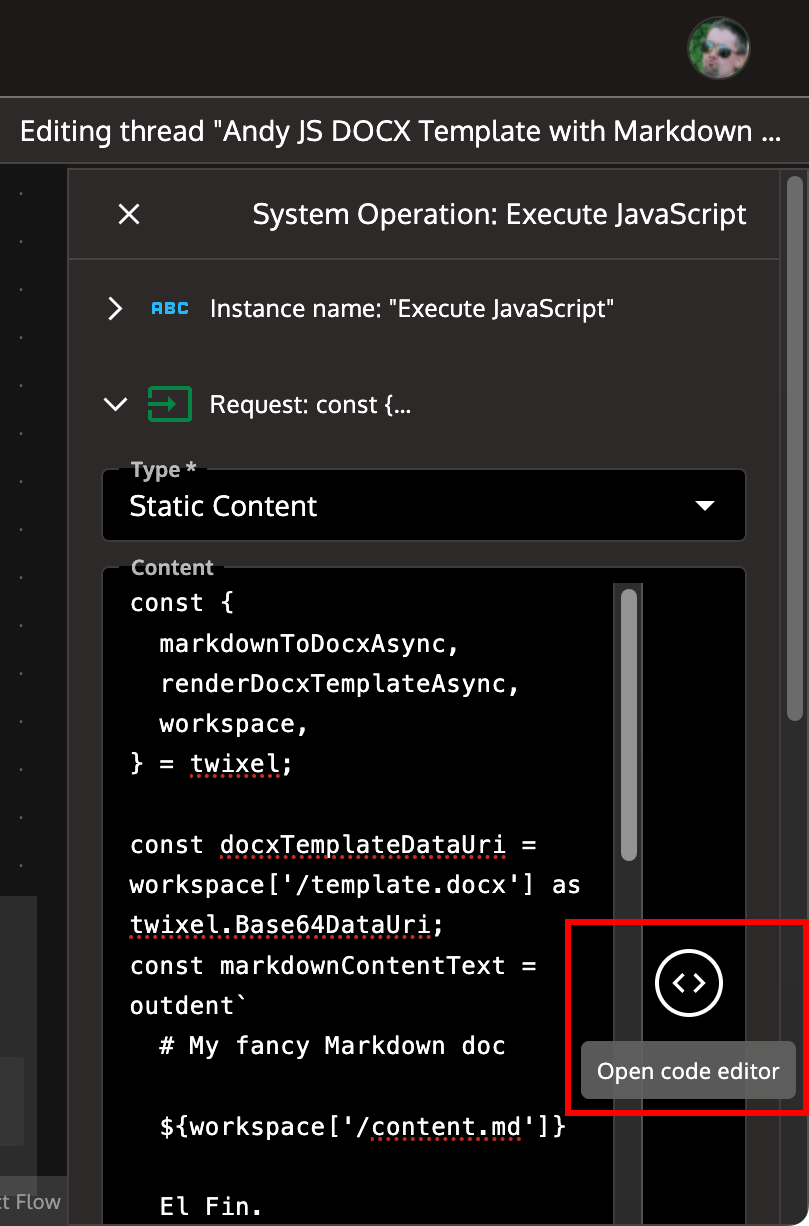 {:
style="height:auto;width:250px"}
{:
style="height:auto;width:250px"}
Step 2. Create a Markdown file
On the Thread Builder page:
- Open the Thread Settings panel
- Expand the Workspace accordion
- Click the "New file" button
- Give the file a path of
/content.md - Copy/paste the following content into the code editor:
## Variable replacement

| Variable name                  | Value                              |
| :----------------------------- | :--------------------------------- |
| `System.DateTime`              | `{{System.DateTime}}`              |
| `LastOperation.Output`         | `{{LastOperation.Output}`          |
| `ThreadParameters.MyParam1`    | `{{ThreadParameters.MyParam1}}`    |
| `OperationParameters.MyParam2` | `{{OperationParameters.MyParam2}}` |
| `FIRST_NAME`                   | `{{FIRST_NAME}}`                   |
| `LAST_NAME`                    | `{{LAST_NAME}}`                    |
Save the file, and save the Thread Plan.
Step 3. Add an "Execute JavaScript" Operation
On the Thread Builder page:
-
Drag and drop a "Execute JavaScript" Operation onto the Thread Builder canvas.
-
Double-click the "Execute JavaScript" operation to open the "Operation Settings" panel.
-
Expand the "Request" accordion, and set the "Type" dropdown to "Static Content".
-
Click the "Open Code Editor" icon button (
<>):
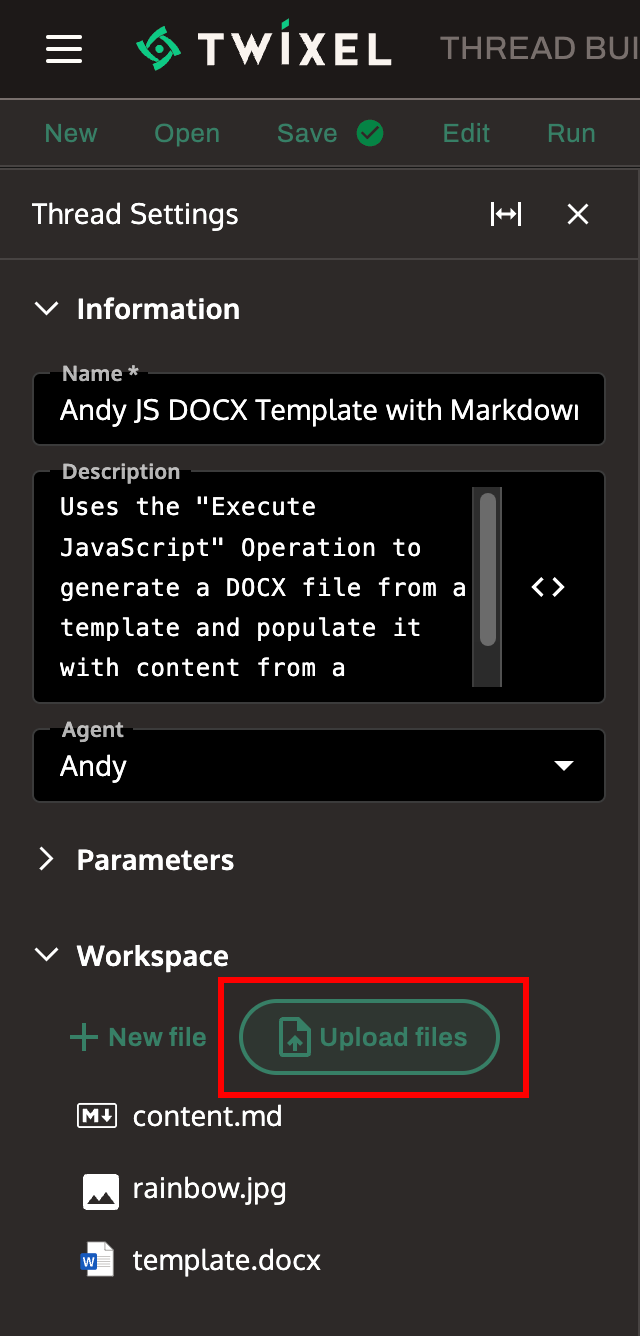 {:
style="height:auto;width:405px"}
{:
style="height:auto;width:405px"}
- Paste in the following TypeScript code:
const templateData = Workspace.read(
  '/template.docx',
) as raikoo.Base64DataUri;

const markdownContent = outdent`
  # My fancy Markdown doc

  ${Workspace.read('/content.md')}

  El Fin.
`;

async function generateDocxFileFromTemplate() {
  return await raikoo.renderDocxTemplateAsync({
    docxTemplateDataUri: templateData,
    replacements: {
      FIRST_NAME: 'Anita',
      LAST_NAME: 'Borg',
      MARKDOWN_CONTENT: markdownContent,
    },
  });
}

export default await generateDocxFileFromTemplate();
-
Add an Operation Parameter named
MyParam2, and give it a "Static content" value of whatever you like. -
IMPORTANT: Set the "Output" to "Single workspace file", and enter a file path of
/OUTPUT.docx:
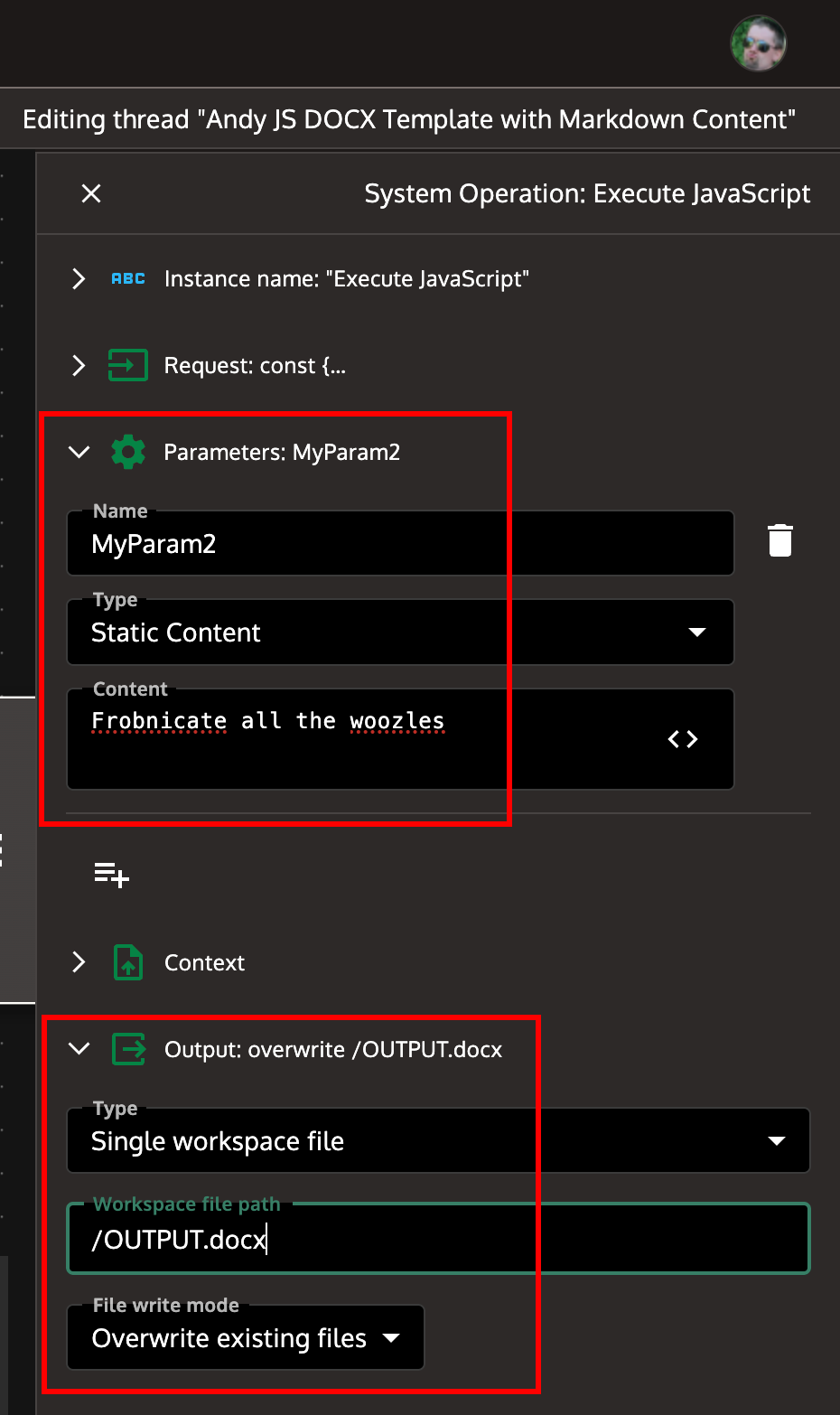 {:
style="height:auto;width:465px"}
{:
style="height:auto;width:465px"}
- Save your changes and click "Run" to execute the Thread Plan.
Step 4. Run the Workflow
When the Workflow completes, click on the "Workspace" tab and click the "Download all" button:
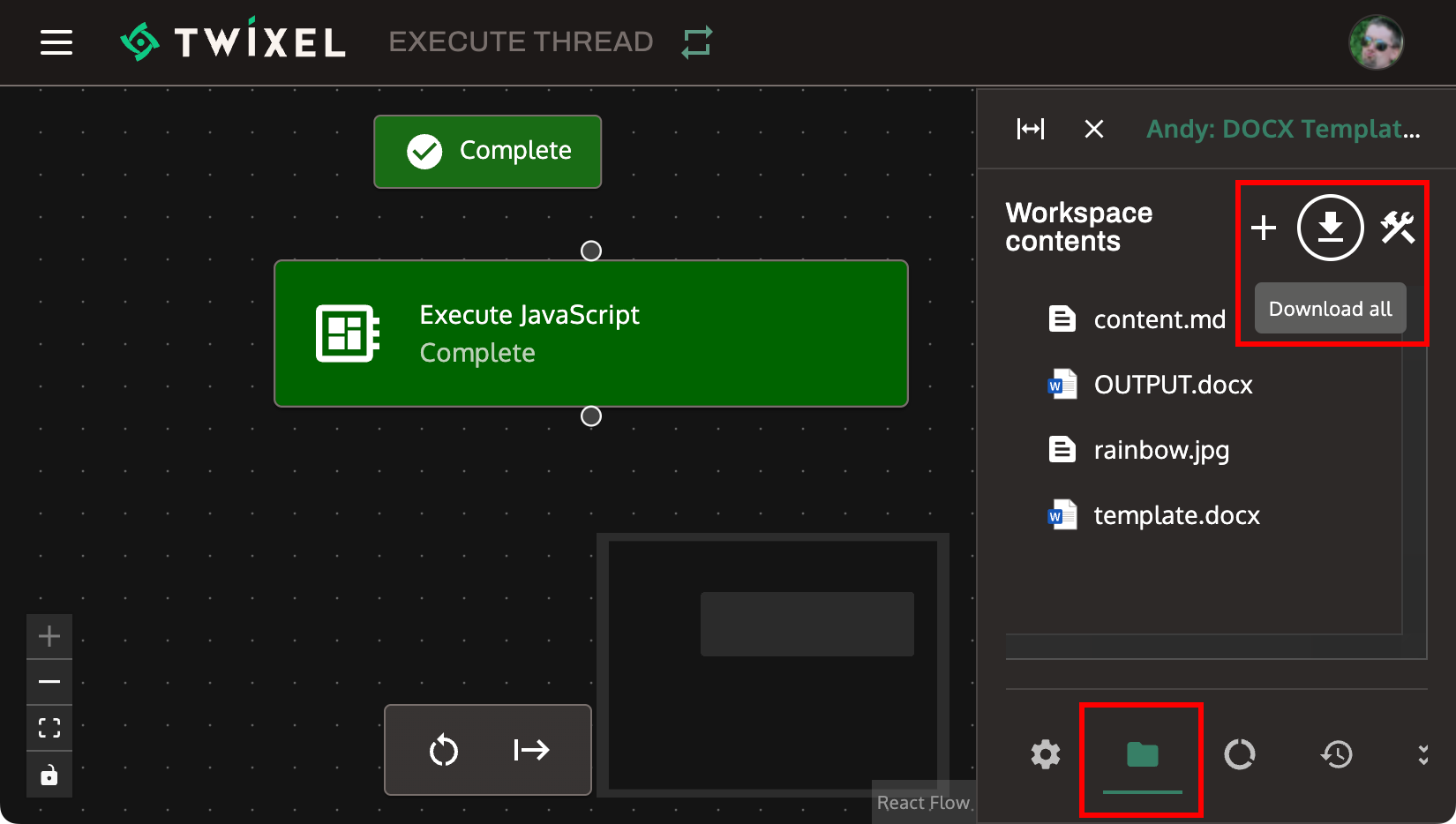 {:
style="height:auto;width:825px"}
{:
style="height:auto;width:825px"}
You now have a .zip file containing the generated OUTPUT.docx file.
Step 5. Use more placeholder variables
On the Workflow Builder page, double-click the "Execute JavaScript" operation and
click the "Open code editor" icon button (<>).
In the "QuickJS - TypeScript" text editor, press Ctrl + Space (even on Mac) to see a dropdown list of all available global variables and functions:
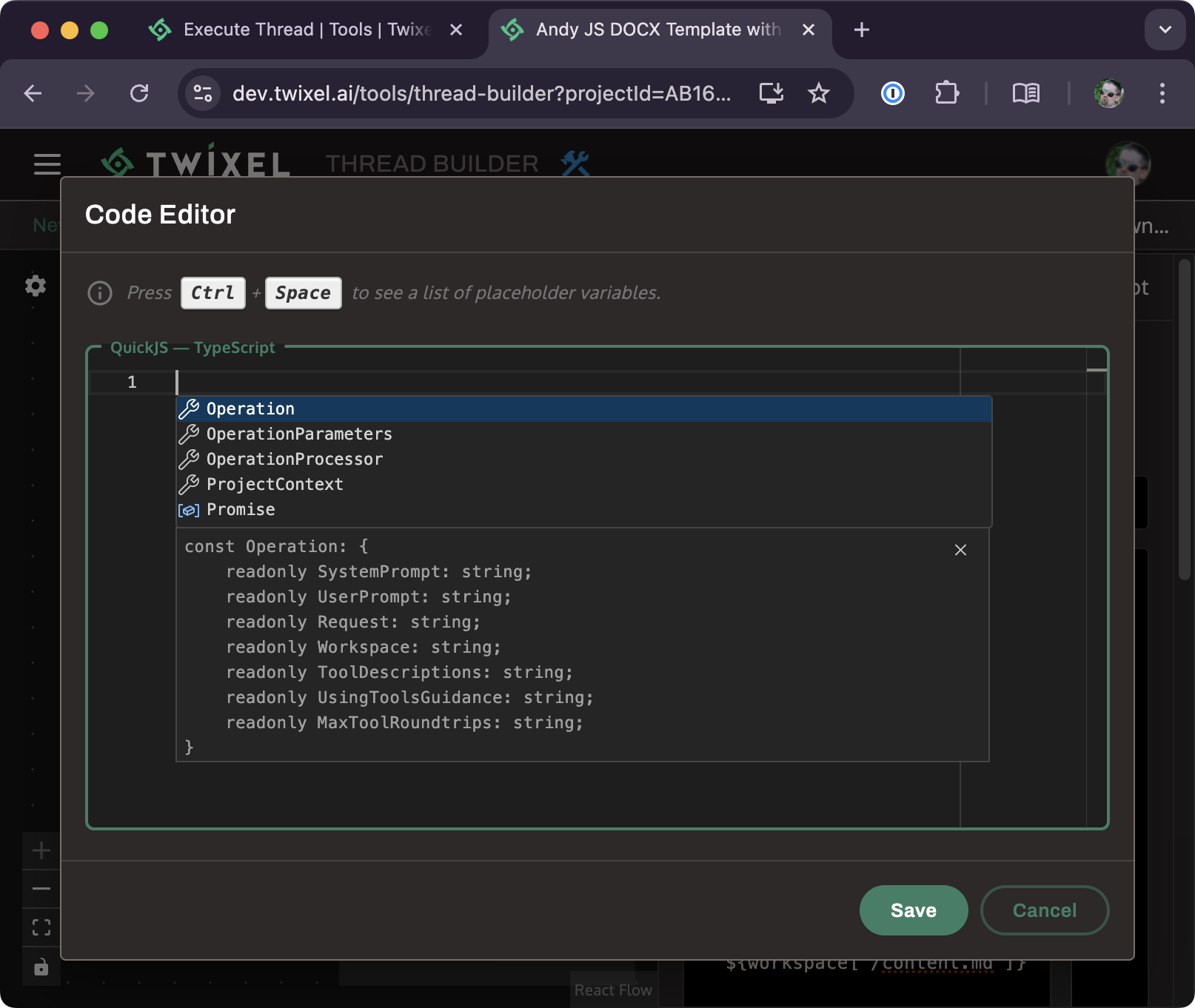 {:
style="height:auto;width:807px"}
{:
style="height:auto;width:807px"}
You can also hover the mouse over any symbol to see a description and usage information:
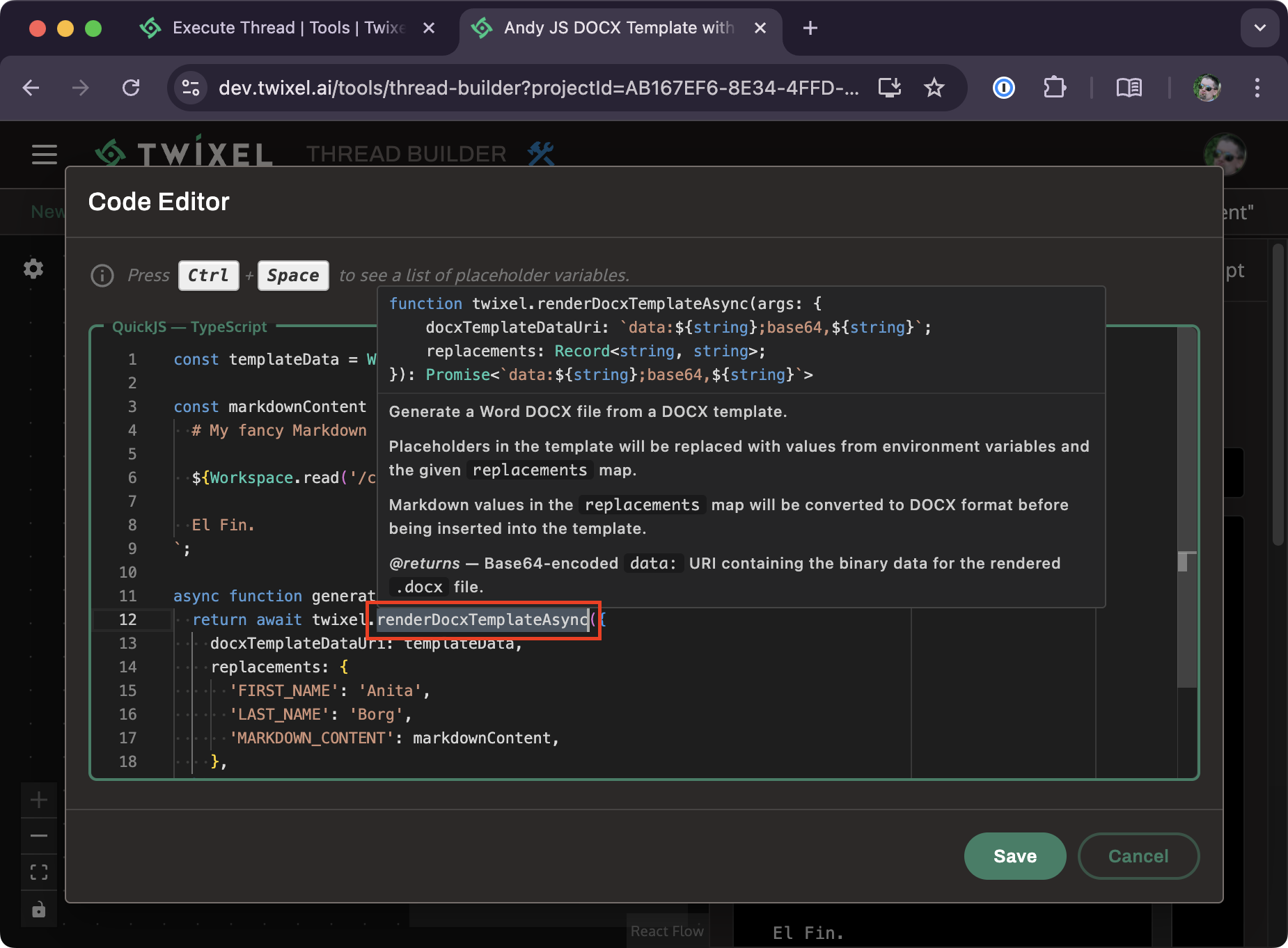 {:
style="height:auto;width:925px"}
{:
style="height:auto;width:925px"}
Working with PDF Documents
PDF is a common format for distributing finalized documents. Raikoo provides operations for both creating and extracting content from PDFs.
Creating PDFs from Markdown
The "Create PDF Operation" converts Markdown content to a PDF document:
- Add the operation to your workflow
- Provide the path to your Markdown content as the request
- Configure the output file path with a
.pdfextension
Converting PDFs to Markdown
The "PDF to Markdown" operation extracts content from PDF documents, making it available for AI processing:
- Add the operation to your workflow
- Provide a base64 encoded PDF document as the request
- Configure the output to save the extracted Markdown content
This is particularly useful for analyzing or modifying content from existing PDF documents.
Working with Spreadsheets
Spreadsheet data can be converted to various formats for different use cases:
Spreadsheet to CSV
Converts Excel spreadsheets to CSV format, useful for simpler data processing:
// Example code for Sheet to CSV conversion
const spreadsheetData = Workspace.read('/data.xlsx');
// Configure the Sheet to CSV operation with this input
Spreadsheet to JSON
Converts Excel data to structured JSON, ideal for programmatic processing:
// After running Sheet to JSON operation
const jsonData = JSON.parse(Workspace.read('/data.json'));
// Process the structured data
Spreadsheet to Markdown
Creates Markdown tables from spreadsheet data, useful for including in reports:
// Example Markdown table output
/*
| Name     | Department | Role          |
|----------|------------|---------------|
| John Doe | Marketing  | Manager       |
| Jane Doe | Finance    | Analyst       |
*/
HTML Processing
Raikoo includes operations for working with HTML content:
Fetching Web Content
The "Get HTML" operation retrieves HTML content from a specified URL:
- Provide the URL as the request
- Optionally set the Format parameter to true for prettier formatting
- Use the HTML content for further processing
Extracting Text from HTML
The "HTML to Text" operation extracts raw text from HTML documents:
// Example flow
// 1. Fetch HTML with Get HTML operation
// 2. Extract text with HTML to Text operation
// 3. Process the plain text with AI operations
Targeting Specific HTML Elements
The "Select HTML" operation extracts specific elements using CSS selectors:
// Example CSS selectors
// "article" - select all article elements
// "#main-content" - select element with ID "main-content"
// ".product-item" - select all elements with class "product-item"
Best Practices for Document Workflows
File Naming Conventions
Establish consistent naming patterns for files:
- Use clear, descriptive names
- Include date information when relevant
- Consider versioning for important documents
- Use appropriate file extensions
Workspace Organization
Organize your workspace effectively:
- Create logical folder structures (e.g.,
/templates,/content,/output) - Group related files together
- Separate templates from content and outputs
- Document your organization scheme
Error Handling
Implement robust error handling:
- Check if files exist before attempting to process them
- Validate input formats before conversion
- Provide fallback options when conversions fail
- Monitor file sizes to prevent processing issues
Performance Optimization
Optimize for better performance:
- Convert files only when necessary
- Process smaller chunks when handling large documents
- Use parallel processing for batch conversions
- Clean up temporary files to manage workspace size
Example Workflow: Report Generation
Here's an example of a complete document workflow that:
- Collects data into a structured format
- Generates analytical content with AI
- Merges content into a template
- Outputs a professionally formatted Word document
Workflow Steps:
-
Data Collection
- Import data from external source (CSV, API, etc.)
- Process and structure the data
- Store in workspace as structured JSON
-
Content Generation
- AI operation analyzes the data
- Generates insights and recommendations in Markdown
- Stores results in workspace
-
Content Formatting
- Additional AI operation improves formatting and language
- Ensures consistent style and terminology
- Adds appropriate headings and structure
-
Document Assembly
- Execute JavaScript operation with template rendering
- Pulls in corporate DOCX template
- Inserts generated content into appropriate sections
- Adds dynamic elements (date, user info, etc.)
-
Output Generation
- Saves finalized DOCX to workspace
- Optionally creates PDF version
- Provides download links or sends via integration
Conclusion
Raikoo's document handling capabilities enable sophisticated document generation, transformation, and processing workflows. By combining format conversion operations with AI content generation, you can create powerful solutions for document automation, report generation, and content transformation.
For specific format conversion details, refer to the System Operations guide, which includes comprehensive information on each conversion operation's parameters and usage.